Understanding Bills of Materials in Odoo Manufacturing
A Bill of Materials (BoM) is a central concept in any manufacturing process. It serves as the blueprint for production, detailing everything required to create a finished product, from raw materials to operations. In Odoo’s Manufacturing module, BoMs are powerful tools that not only define what’s needed for production but also help streamline inventory, plan work orders, and improve manufacturing accuracy.
In this article, you’ll learn what a BoM is, how to configure it in Odoo 19.0, and how to use its advanced features.

Understanding Bills of Materials in Odoo Manufacturing
A Bill of Materials (BoM) is a central concept in any manufacturing process. It serves as the blueprint for production, detailing everything required to create a finished product, from raw materials to operations. In Odoo’s Manufacturing module, BoMs are powerful tools that not only define what’s needed for production but also help streamline inventory, plan work orders, and improve manufacturing accuracy.
In this article, you’ll learn what a BoM is, how to configure it in Odoo 19.0, and how to use its advanced features.

What is a Bill of Materials
Bill of Materials is essentially a recipe for manufacturing a product. It lists:
Components — the materials required
Quantities — how much of each material is needed
Operations — steps or processes to turn components into the finished product
BoMs in Odoo can also include optional settings like consumption rules, variant tracking, production readiness rules, and by‑products.
In this article, you’ll learn what a BoM is, how to configure it in Odoo 19.0, and how to use its advanced features.Bill of Materials is essentially a recipe for manufacturing a product. It lists:
Components — the materials required
Quantities — how much of each material is needed
Operations — steps or processes to turn components into the finished product
BoMs in Odoo can also include optional settings like consumption rules, variant tracking, production readiness rules, and by‑products.
What Is a Bill of Materials?
Including Production Operations
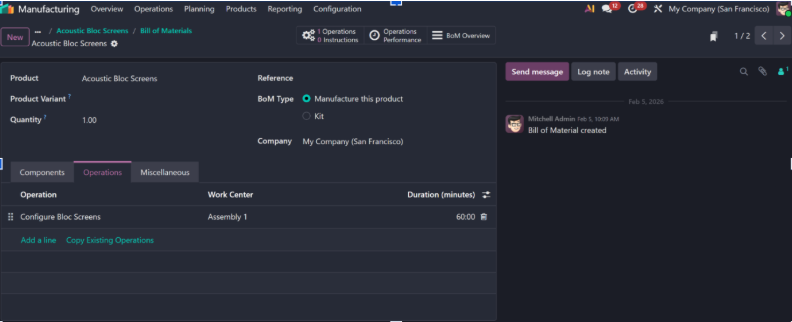
BoMs can include specific operations, such as assembly steps or processing tasks. This enhances planning, scheduling, and cost tracking.
Before adding operations, you must enable Work Orders:
Go to Manufacturing → Configuration → Settings.
Turn on Work Orders.
Now in the BoM:
Open the Operations tab.
Click Add a line.
Enter:
Operation Name (e.g., Assembly)
Work Center — where the operation takes place
Duration and scheduling details
Operations are useful for:
Scheduling work centers
Tracking time for labor cost
Defining detailed production steps
Each operation in a BoM is unique and linked only to that BoM, which keeps instructions accurate and contextual.
Including Production Operations
BoMs can include specific operations, such as assembly steps or processing tasks. This enhances planning, scheduling, and cost tracking.
Before adding operations, you must enable Work Orders:
Go to Manufacturing → Configuration → Settings.
Turn on Work Orders.
Now in the BoM:
Open the Operations tab.
Click Add a line.
Enter:
Operation Name (e.g., Assembly)
Work Center — where the operation takes place
Duration and scheduling details
Operations are useful for:
Scheduling work centers
Tracking time for labor cost
Defining detailed production steps
Each operation in a BoM is unique and linked only to that BoM, which keeps instructions accurate and contextual.
By‑Products: When Production Creates More Than One Item
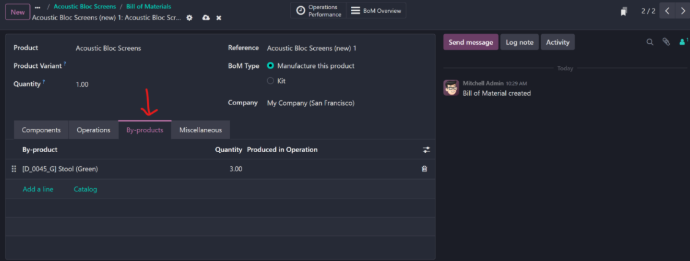
Some manufacturing processes yield additional products besides the main finished good. These are called by‑products.
To use by‑products:
Enable By‑Products in Manufacturing → Configuration → Settings.
Open your BoM and go to the By‑Products tab.
Add the by‑product, its quantity, and whether it’s tied to a specific operation.
This feature is particularly valuable especially useful across sectors such as in industries like:
Food processing
Chemicals
Wood products
Any scenario with secondary outputs
By‑Products: When Production Creates More Than One Item
Some manufacturing processes yield additional products besides the main finished good. These are called by‑products.
To use by‑products:
Enable By‑Products in Manufacturing → Configuration → Settings.
Open your BoM and go to the By‑Products tab.
Add the by‑product, its quantity, and whether it’s tied to a specific operation.
This feature is particularly valuable especially useful across sectors such as in industries like:
Food processing
Chemicals
Wood products
Any scenario with secondary outputs

Real‑World Example using BoM
Imagine your business manufactures bicycles. A BoM for a bicycle might include:
Frame
Wheels
Handlebar
Chain
Seat
Each component is added with specific quantities. If your BoM includes operations, you might also list tasks like:
Frame assembly
Wheel mounting
Quality inspection
This BoM becomes the production plan for every bicycle you manufacture in Odoo.
Real‑World Example using BoM
Imagine your business manufactures bicycles. A BoM for a bicycle might include:
Frame
Wheels
Handlebar
Chain
Seat
Each component is added with specific quantities. If your BoM includes operations, you might also list tasks like:
- Frame assembly
- Wheel mounting
- Quality inspection
This BoM becomes the production plan for every bicycle you manufacture in Odoo.
Why Bills of Materials Are Vital

Here are just a few reasons why well‑configured BoMs improve your manufacturing process:
1. Clear Production Instructions
BoMs serve as precise guides for materials and steps.
2. Accurate Inventory Usage
Odoo automatically reserves and consumes materials when production starts.
3. Cost Tracking
Components and operations can be used to calculate production costs, which feed into pricing and accounting.
4. Better Planning
BoMs are the basis for schedules, procurement automation, and manufacturing orders.
Here are just a few reasons why well‑configured BoMs improve your manufacturing process:
1. Clear Production Instructions
BoMs serve as precise guides for materials and steps.
2. Accurate Inventory Usage
Odoo automatically reserves and consumes materials when production starts.
3. Cost Tracking
Components and operations can be used to calculate production costs, which feed into pricing and accounting.
4. Better Planning
BoMs are the basis for schedules, procurement automation, and manufacturing orders.
Why Bills of Materials Are Vital
Practical Tips for Writing Effective BoMs
✔ Always include all raw materials and quantities.
✔ Use operations only when work order tracking is needed.
✔ Update your BoMs when product designs change.
✔ Use by‑products if you produce more than one output.
These practices prevent errors and keep your production process smooth.
Practical Tips for Writing Effective BoMs
✔ Always include all raw materials and quantities.
✔ Use operations only when work order tracking is needed.
✔ Update your BoMs when product designs change.
✔ Use by‑products if you produce more than one output.
These practices prevent errors and keep your production process smooth.
Conclusion
A Bill of Materials in Odoo Manufacturing is more than a component list — it’s the heart of your production logic. Understanding how to configure and optimize BoMs empowers you to manage inventory, schedule production, and control costs effectively.
By following this guide, you’d be ready to:
Create accurate BoMs
Add components and operations
Use advanced settings like by‑products and flexible consumption
With well‑defined BoMs, your manufacturing process becomes structured, efficient, and reliable — essential for any business aiming to scale production with confidence.

Conclusion
A Bill of Materials in Odoo Manufacturing is more than a component list — it’s the heart of your production logic. Understanding how to configure and optimize BoMs empowers you to manage inventory, schedule production, and control costs effectively.
By following this guide, you’d be ready to:
Create accurate BoMs
Add components and operations
Use advanced settings like by‑products and flexible consumption
With well‑defined BoMs, your manufacturing process becomes structured, efficient, and reliable — essential for any business aiming to scale production with confidence.