The Accounting app in Odoo is challenging to learn. Many functions, such as creating financial reports, auditing journal entries, managing assets, and more, are available and ready to use. This guide helps you get started with accounting in Odoo for your company. (You can skip to any section if you are familiar with accounting on Odoo.)
The Accounting app in Odoo is challenging to learn. Many functions, such as creating financial reports, auditing journal entries, managing assets, and more, are available and ready to use. This guide helps you get started with accounting in Odoo for your company. (You can skip to any section if you are familiar with accounting on Odoo.)
Set up your company details
Before proceeding to use the Accounting app, set up your company details such as its name, address, phone number and email address. Your company’s Tax ID or VAT number are important as well. You can adjust them on the Companies section by going to the Settings app and selecting General Settings. These details will then be displayed on your documents such as invoices which you can configure on the same section.
Set up your company details
Before proceeding to use the Accounting app, set up your company details such as its name, address, phone number and email address. Your company’s Tax ID or VAT number are important as well. You can adjust them on the Companies section by going to the Settings app and selecting General Settings. These details will then be displayed on your documents such as invoices which you can configure on the same section.
Set up your fiscal localization / country
Choose the appropriate fiscal localization / country for your company by selecting Accounting under the Settings app. Once you have issued an invoice or created a journal entry, you cannot change the fiscal localization. Hence, it is important that your selection is correct.

Taxes and Fiscal Periods
These are automatically filled out but you can adjust them to how your company operates. The important fields to check are your Sales Tax, Purchase Tax, Tax Return Periodicity and Fiscal Periods.
Taxes and Fiscal Periods
These are automatically filled out but you can adjust them to how your company operates. The important fields to check are your Sales Tax, Purchase Tax, Tax Return Periodicity and Fiscal Periods.
Set up your fiscal localization / country
Choose the appropriate fiscal localization / country for your company by selecting Accounting under the Settings app. Once you have issued an invoice or created a journal entry, you cannot change the fiscal localization. Hence, it is important that your selection is correct.


Link your bank account
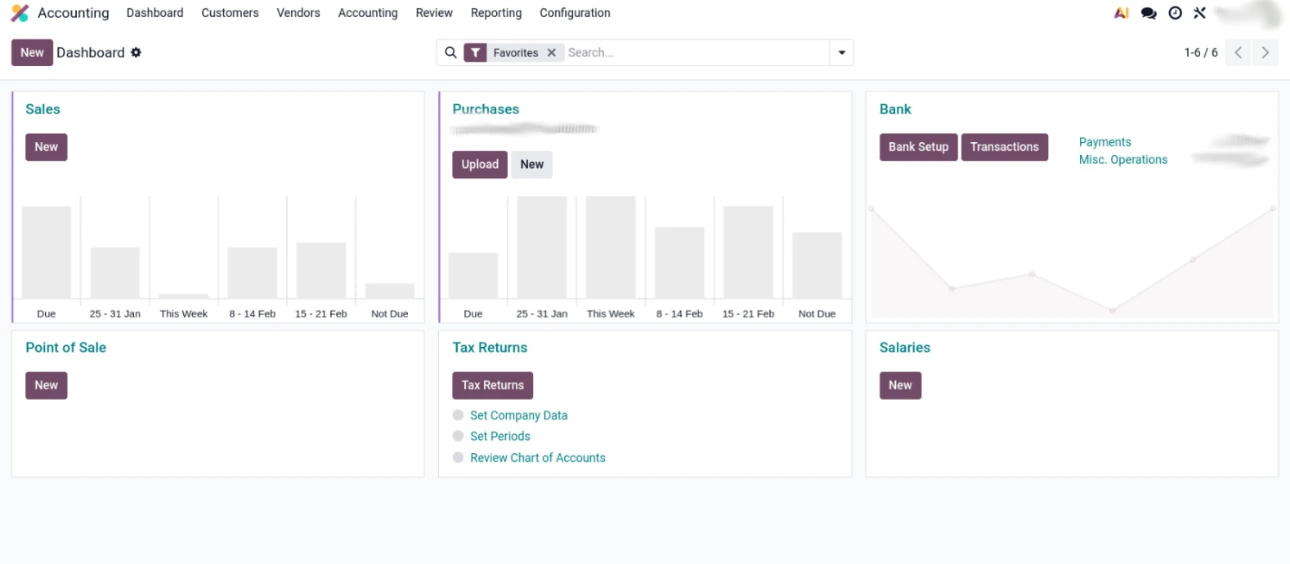
Go to the Dashboard of the Accounting app, find a card with the label “Bank”, and search and link your company’s bank account. This automatically synchronizes the company’s bank statements with Odoo and records them in its own journal. You can confirm this by selecting Configuration, then Journals, and find the journal that matches your bank account name.
Manually link a bank account
If your banking institution is not available in Odoo, you can link your bank account manually by entering its name while searching and add it. Enter its account number and bank identifier code (BIC or SWIFT) to connect.
Link your bank account
Go to the Dashboard of the Accounting app, find a card with the label “Bank”, and search and link your company’s bank account. This automatically synchronizes the company’s bank statements with Odoo and records them in its own journal. You can confirm this by selecting Configuration, then Journals, and find the journal that matches your bank account name.
Manually link a bank account
If your banking institution is not available in Odoo, you can link your bank account manually by entering its name while searching and add it. Enter its account number and bank identifier code (BIC or SWIFT) to connect.
Set up your chart of accounts
A standard chart of accounts is included when you have chosen your fiscal localization. While you can use it directly, you can set it according to your company’s needs. To create a new account, select Chart of Accounts under Configuration. Fill up the required fields such as the account name, code, and type. The type must be configured correctly as it sets the accounts purpose and behavior.
Note that you cannot delete an account once a transaction has been recorded. You can make them unusable instead by deprecating it in the accounts settings.
Default Taxes, Tags, and Reconciliation
Import Existing Chart of Accounts
You can set default taxes and enable reconciliation by selecting an account under the Chart of Accounts. For custom reporting, you can assign tags to an account for descriptive purposes.
You can import your company’s existing Chart of Accounts either as an Excel or CSV file using Odoo’s provided template. Alternatively, you can manually review or set the Chart of Accounts with their initial opening debit and credit.
Set up your chart of accounts
A standard chart of accounts is included when you have chosen your fiscal localization. While you can use it directly, you can set it according to your company’s needs. To create a new account, select Chart of Accounts under Configuration. Fill up the required fields such as the account name, code, and type. The type must be configured correctly as it sets the accounts purpose and behavior.
Note that you cannot delete an account once a transaction has been recorded. You can make them unusable instead by deprecating it in the accounts settings.
Default Taxes, Tags, and Reconciliation
Import Existing Chart of Accounts
You can set default taxes and enable reconciliation by selecting an account under the Chart of Accounts. For custom reporting, you can assign tags to an account for descriptive purposes.
You can import your company’s existing Chart of Accounts either as an Excel or CSV file using Odoo’s provided template. Alternatively, you can manually review or set the Chart of Accounts with their initial opening debit and credit.
Wrapping Up
With these configurations complete, your company is set to start their daily accounting operations with Odoo. You can start by issuing invoices to your customers or pay bills from your vendors. The transactions will automatically be recorded on Odoo’s journal entries and other documents.
Wrapping Up
With these configurations complete, your company is set to start their daily accounting operations with Odoo. You can start by issuing invoices to your customers or pay bills from your vendors. The transactions will automatically be recorded on Odoo’s journal entries and other documents.