Skip to Content

Manufacturing Product Configuration in Odoo: A Beginner’s Guide

Before a product can hit the production line in Odoo, it must be digitally "built" in the system. This configuration is the foundation of the Manufacturing (MRP) module. Without it, Odoo cannot generate manufacturing orders, track raw materials, or calculate production costs.Proper setup ensures that your inventory moves in sync with your shop floor, preventing stockouts and data silos.Before any product can be manufactured in Odoo, it must first be properly configured. This step is essential because the system needs to know how the product is produced, what materials are required, and what operations are involved. Without this configuration, Odoo cannot generate manufacturing orders or manage production correctly.


Why Product Configuration Matters in Manufacturing

In Odoo, manufacturing is entirely data-driven. The system relies on specific product settings to automate inventory movements and schedule work orders. To transform a standard product into a "manufacturable" item, two core conditions must be met:

  1. The Manufacture Route must be enabled.

  2. A Bill of Materials (BoM) must be linked to the product.

Step 1: Enabling the Manufacture Route

The first step is to tell Odoo that a product is manufactured rather than purchased or stocked.

To do this:

  1. Go to Manufacturing → Products (Navigation Menu) → Products.

  2. Open an existing product or create a new one.

  3. Go to the Inventory tab.

  4. In the Routes section, enable the Manufacture option.

This setting informs Odoo that the product will be produced internally. 

What the Manufacture Route Does

When this option is activated:

  • Odoo allows selecting a product in a manufacturing order.

  • The system knows it should produce the item rather than purchase it.

  • Production workflows become available for the product.

Without this route enabled, the product cannot be used in the manufacturing module.

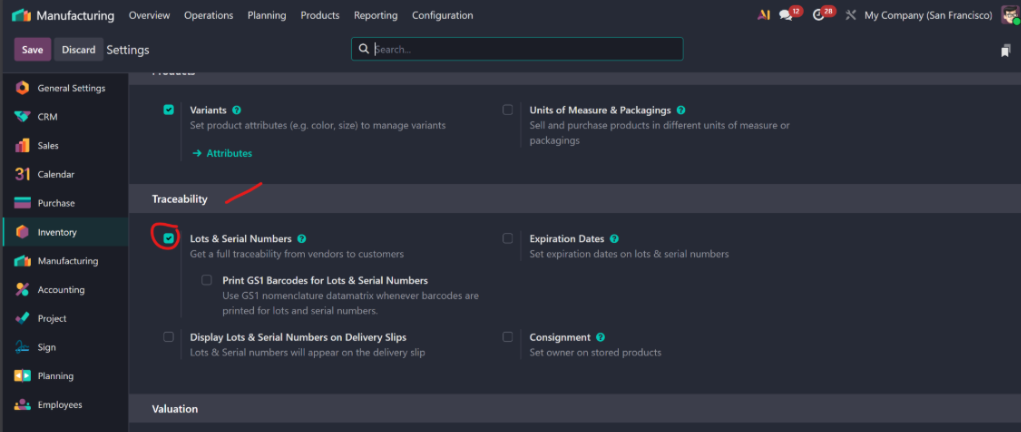
Step 2: Configuring Lot or Serial Number Tracking

Traceability is critical for quality control, especially in industries such as electronics and food production. Odoo allows you to track finished goods as they leave the production line.

To enable tracking:

  1. In the Inventory tab of the product form, locate the Traceability section.

  2. Unique Serial Number: Best for high-value items (e.g., a custom laptop).

  3. Lots: Best for batch production (e.g., a gallon of paint or a box of bolts).

By enabling this, Odoo will prompt the user to assign a lot or serial number as soon as production is completed.

In many industries, traceability is important. Odoo allows you to track finished products using:

  • Serial numbers (for unique items)

  • Lot numbers (for batch production)

To enable tracking:

  1. Go to the Inventory tab of the product.

  2. Find the Traceability section.

  3. Choose:

    • By Unique Serial Number, or

    • By Lots.

When enabled, Odoo adds a lot of serial fields during manufacturing, allowing you to track each produced unit or batch.

This is especially useful for:

  • Electronics

  • Pharmaceuticals

  • Food production

  • Any industry with quality control requirements


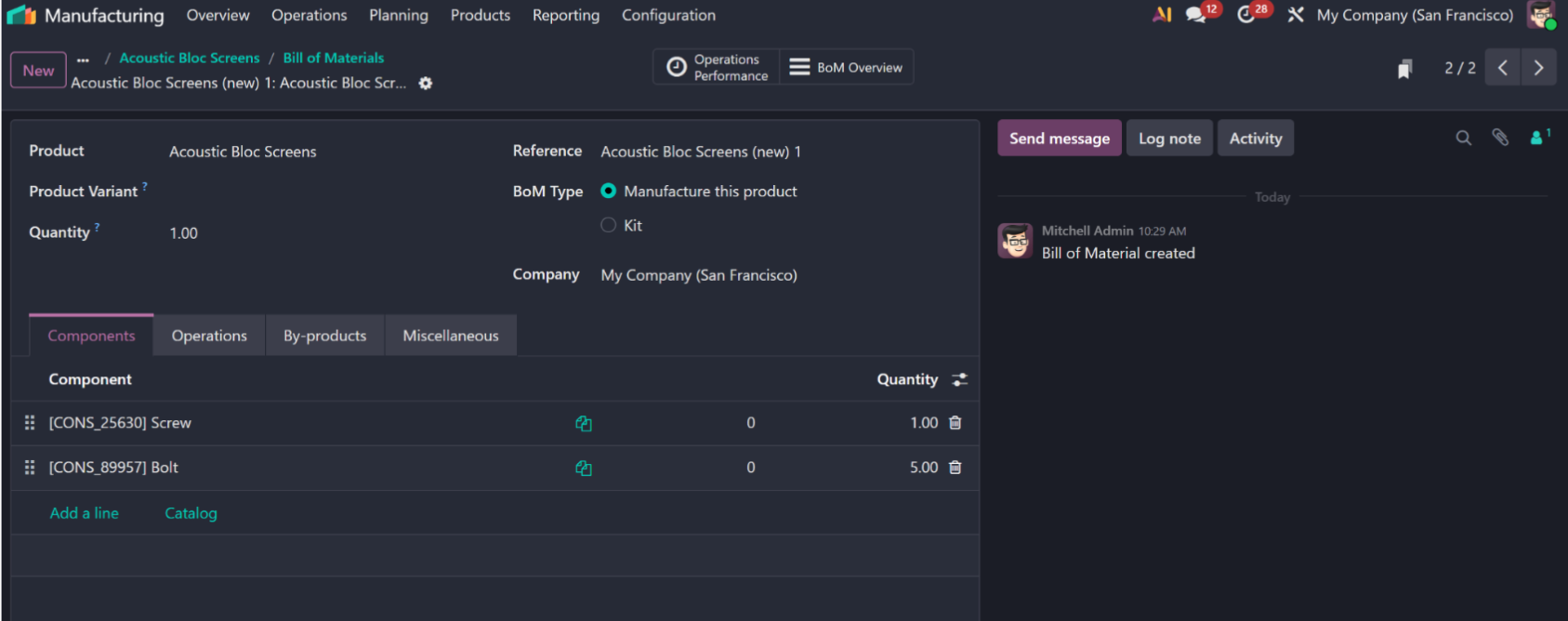
Step 3: Creating the Bill of Materials (BoM)

How to Create a BoM
  1. Open the product form.

  2. Click the Bill of Materials smart button.

  3. Click New.

  4. Enter:

    • The product (auto-filled)

    • The quantity produced

Then:

  • Add components under the Components tab.

  • Add operations under the Operations tab (if work orders are enabled)

Once the BoM is saved, the product is fully configured for manufacturing. 

The Role of Operations and Work Orders

If the Work Orders setting is enabled in manufacturing settings, the BoM can include operations. These define the actual production steps, such as:

  • Cutting 

  • Assembly

  • Painting

  • Packaging

Each operation can be linked to a specific work center, allowing Odoo to schedule tasks and track time spent on production.

This is useful for companies that need:

  • Detailed production tracking

  • Labor cost calculation

  • Shop floor scheduling

What Happens After Configuration

Once the manufacture route and BoM are in place:

  • The product appears in Manufacturing Orders (MOs).

  • Odoo automatically loads required components and operations.

  • Inventory is updated as materials are consumed and finished goods are produced.

In practical demonstrations, once a manufacturing order is created, the system auto-populates the BoM and required components, making the production process faster and more accurate

Practical Example: Manufacturing a Custom Office Desk

To see how this works in a real-world scenario, let’s configure a Custom Office Desk.

Simple Example: Manufacturing a Wooden Table

To better understand the process, imagine you want to manufacture a wooden table.

1. Product Setup
  • Product Name: Custom Office Desk

  • Route: Manufacture (Enabled)

  • Tracking: By Lots (To track the production batch)

2. The Bill of Materials (BoM)
  • Components:

    • 1x Wooden Tabletop

    • 4x Steel Legs

    • 1x Cable Management Tray

    • 16x Heavy-duty Screws

  • Operations:

    • Drilling: Preparing the tabletop for legs.

    • Assembly: Attaching the steel legs and tray.

    • Polishing: Final surface treatment.

The Result: When you create a Manufacturing Order (MO) for 5 desks, Odoo will automatically "reserve" 20 steel legs and 80 screws from your inventory, ensuring your production team has everything they need.

Practical Example: Manufacturing a Custom Office Desk

To see how this works in a real-world scenario, let’s configure a Custom Office Desk.

Simple Example: Manufacturing a Wooden Table

To better understand the process, imagine you want to manufacture a wooden table.

1. Product Setup
  • Product Name: Custom Office Desk

  • Route: Manufacture (Enabled)

  • Tracking: By Lots (To track the production batch)

2. The Bill of Materials (BoM)
  • Components:

    • 1x Wooden Tabletop

    • 4x Steel Legs

    • 1x Cable Management Tray

    • 16x Heavy-duty Screws

  • Operations:

    • Drilling: Preparing the tabletop for legs.

    • Assembly: Attaching the steel legs and tray.

    • Polishing: Final surface treatment.

The Result: When you create a Manufacturing Order (MO) for 5 desks, Odoo will automatically "reserve" 20 steel legs and 80 screws from your inventory, ensuring your production team has everything they need. 

Common Pitfalls to Avoid
  • Forgetting the Route: If you don't check "Manufacture," the product won't appear as an option when creating a Manufacturing Order.

  • Missing Unit of Measure (UoM): Ensure your raw materials (like screws) are measured in the same units you use for purchasing (e.g., "Units" vs "Boxes").

  • Skipping Operations: If your labor costs are high, don't skip the Operations tab. This is where Odoo calculates how much time (and money) is spent on the shop floor.

Conclusion

Product configuration is the most important step in mastering Odoo Manufacturing. By correctly setting your routes and building an accurate BoM, you unlock the full power of Odoo’s automation—from inventory replenishment to detailed cost reporting.

Once your products are configured, you are ready to move on to Work Center management and Production Scheduling.