Managing Taxes in Odoo
In general, companies are regulated to keep track of their taxes on sales and periodically file them on tax returns. This article helps you how to manage your company’s taxes directly on Odoo.

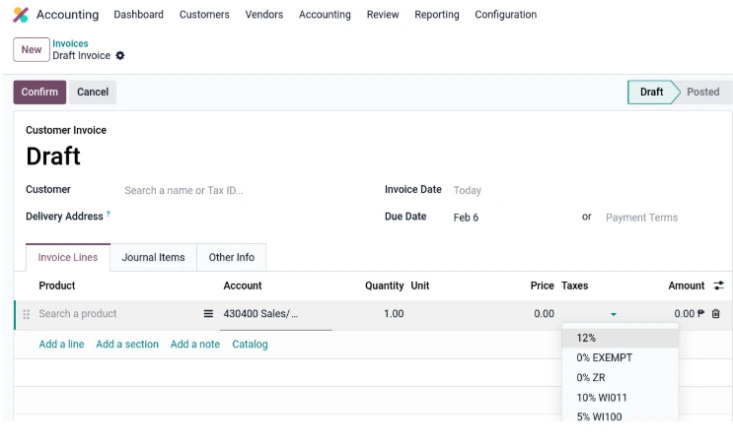
How taxes are applied
Taxes are applied on documents created via the Sales, Purchase, Accounting, and Point of Sale apps. An example would be customer invoices: each invoice line lets you add a product, its quantity, and imposing a tax such as Value-Added Tax (VAT), the amount of which depends on your company’s fiscal localization. The same is true for other documents such as vendor bills, quotations, sales orders, and more.
When adding products to customer invoices, you can impose the appropriate tax which will be computed to the total price.
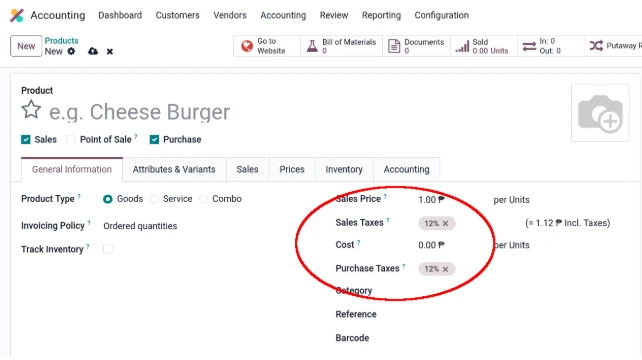
Instead of adding taxes for each line, you can choose a product and assign its imposing sales and/or purchase tax directly by selecting Customers or Vendors and navigating to Products under the Accounting app. Thus, when you add products from the catalog, the tax will automatically be assigned.
When creating or modifying products, you can set its sales and/or purchase tax so that you would not have to add them on the invoice lines manually.
Automatic tax computation and
journal generation
Odoo automatically computes the tax amount based on the line’s subtotal and the tax’s configuration. Additionally, tax payable journal items are generated with their debit and credit associations. For each journal item, a tax grid is applied for reference in the Tax Return report.

Tax grids allow you to map tax journal items to their corresponding lines in the Tax Return report.
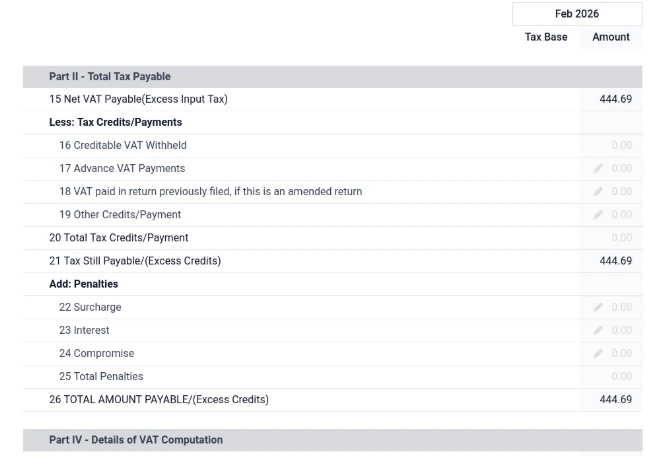
Tax return report
A tax return is a document with information about the taxable transactions made by a company. Generally, it is filed monthly, quarterly, or yearly depending on the country’s regulatory requirements. To calculate the tax amount to be paid or refunded, two metrics are used: the output tax (from sale of goods and services) and input tax (from purchased goods or services).
With Odoo, tax returns are automatically generated and complete with the information tailored to your fiscal localization. You can access the report by navigating to Reporting and selecting Tax Report.
The format for generating tax reports follows your country’s regulatory requirements.

Tax configuration
You can configure tax relevant options for your company by selecting Configuration and then either Settings or Taxes.

Default Taxes
Default taxes can be set for sales and purchase tax. Prices can be tax inclusive or exclusive. Note that once a journal has been created, you cannot change the price setting.
Tax Return Periodicity
Ensure the periodicity aligns with your company’s fiscal/calendar year in order to compute tax returns correctly. By setting a deadline, Odoo can send reminders on when to file them. You can find the progression of filing tax returns by navigating to Tax Returns under Accounting.

Opening Tax Returns shows you the periods for filing your tax returns and paying them. With deadlines, your company can be constantly reminded to work on their tax obligations.
Customizing Taxes and Tax Groups
Navigating to Taxes under Configuration shows you the individual tax items you can apply to your products. This is also where you can create custom taxes which are not part of your fiscal localization. Selecting a tax item will display options such as the tax name, tax computation, fiscal position, and advanced options like the tax group and price inclusion. You can also configure how the tax journal items are created with their corresponding tax grids.

When selecting a tax item, you can configure how it is computed on the journal based on the product being taxed.
Tax groups are a way to organize the individual taxes and map them to their tax payable and receivable accounts. You can add and remove tax groups by navigating to Configuration, then Settings, and selecting “Configure your tax accounts”.

Tax groups are a way to organize the individual taxes and map them to their tax payable and receivable accounts.
Wrapping up
You are now all set to apply your taxes in your company’s day-to-day transactions. Start by applying sales and/or purchase taxes to your products, sell them, and view the total amount of taxes on the Tax Report.